 online manual
How to use the LUMIN App
Now Playing Full Screen
Tapping on the artwork on the Mini Now Playing area or swiping right on phones will open a full screen Now Playing layout.
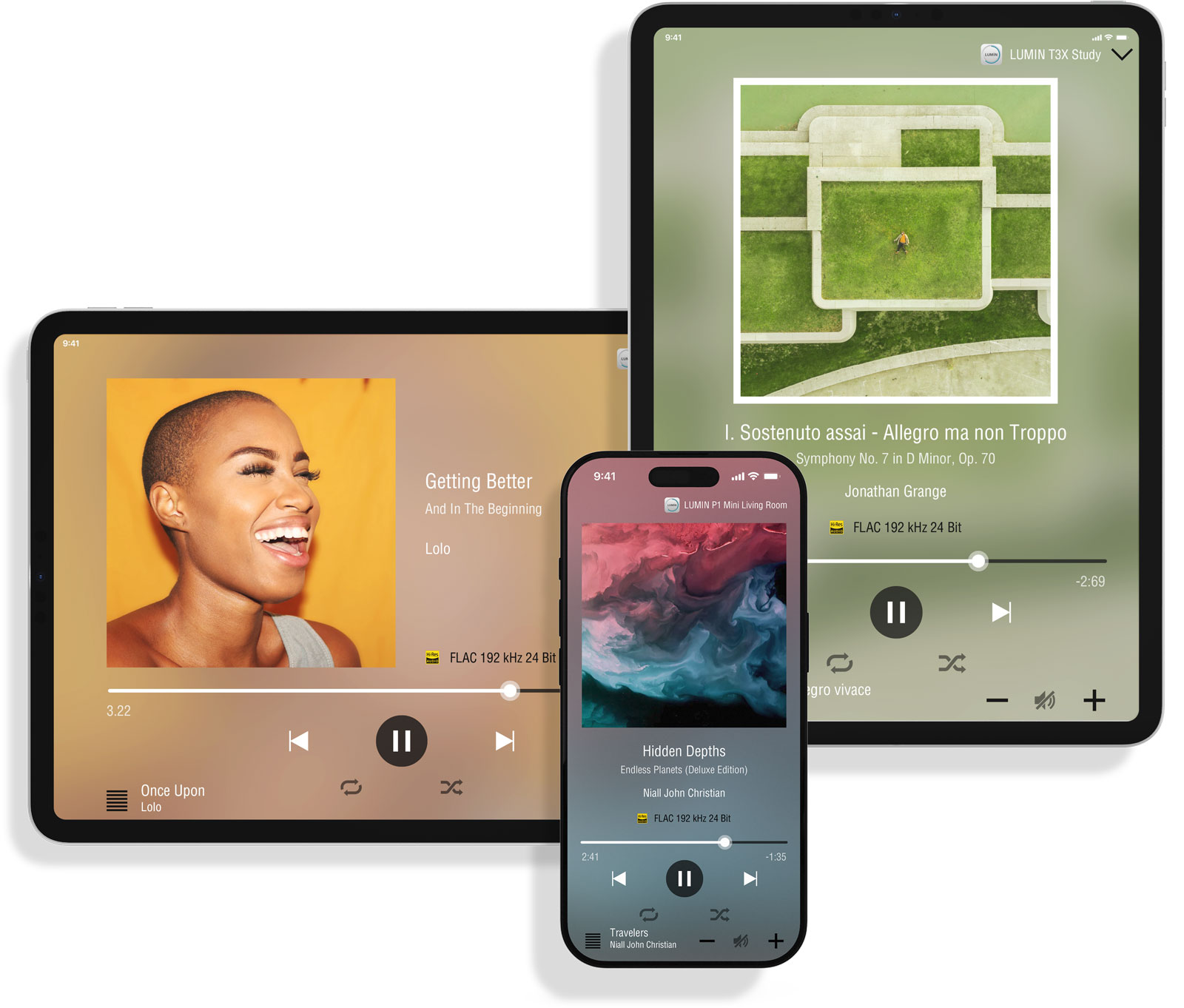
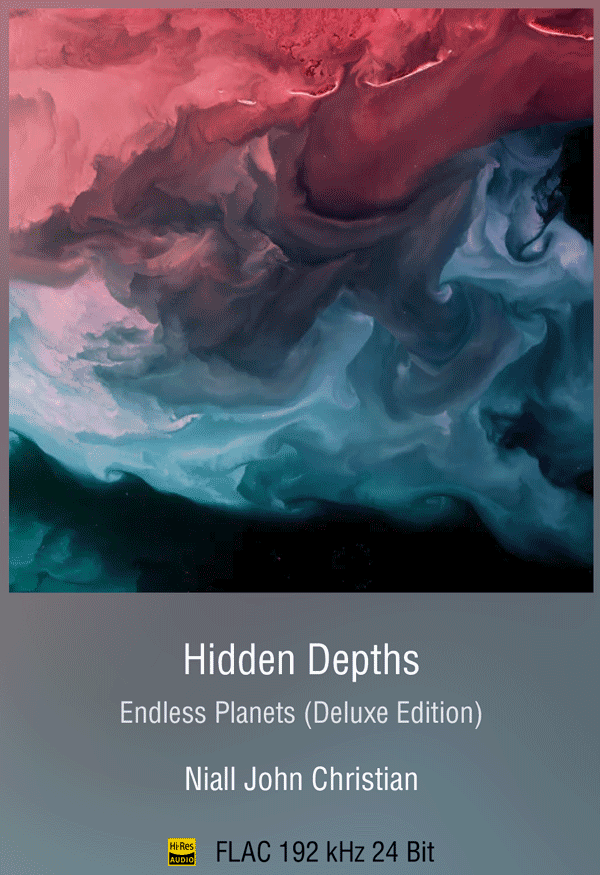 |
Now Playing song info
Figures in brackets show upsampled rate, e.g. 44.1 kHz (2.8 MHz), 16 bit (1 bit) shows that the original sample rate was CD quality, and LUMIN is upsampling to DSD. Tap the Artwork to enter a minimal Fullscreen Artwork Mode. Tap again to exit. |
|---|---|
 |
Timeline
Drag the Current Position Marker to play a different section of the song. |
 |
Control
Note: To Stop, you can tap Pause and then tap Skip Back. This resets the Timeline of the song to zero. |
 |
Next in Playlist
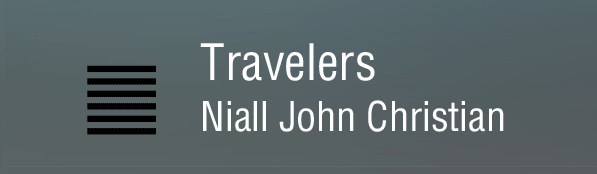
Tap the Playlist icon to exit full screen Now Playing and return to the Playlist. Note: Song information will be blank if 'Shuffle' is selected. |
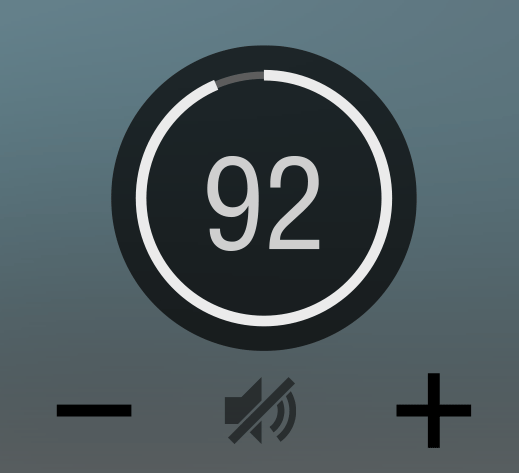 |
VolumeInitially, the following 3 buttons are displayed
Tapping any of these buttons reveals the Volume Ring displaying the Current Volume Percentage. While this ring is displayed, it can be controlled by dragging directly on the ring, or by using the +/- buttons. The Volume Ring will disappear after a few seconds of inactivity. Notes:
|
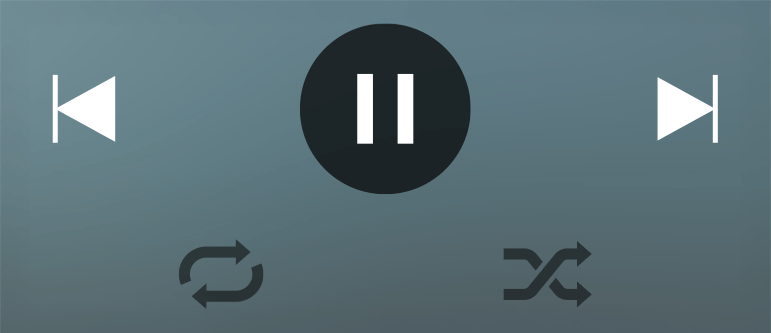
 Skip Back to previous song, or replay current song in Playlist. Note: When the current song is within the first 5 seconds, this control will skip back to the previous song; otherwise it will replay the current song.
 Play/Pause: Toggles between play and pause.
 Skip Forward: Skips to the next song in the Playlist.
 Shuffle: The next song is selected at random from the whole Playlist.
 Repeat: The whole Playlist will loop.
 Mute
Mute  Increase volume
  Decrease Volume